

Admin Dashboards and Internal Tools: Build vs Buy Guide
Almost every growing business has an unofficial back office: a shared spreadsheet that only one person understands, an inbox where requests get lost, and a routine of copying data from one system into another. It works until it does not, usually when a mistake costs money or the one person who knows the process is away.
An admin dashboard or internal tool replaces that patchwork with software that fits how your team works. This guide explains what these tools are, when to build custom rather than buy, which features matter, how to keep them secure, how to start small, and what to look for in a developer. It is written for operations leaders and founders more than engineers.
What are admin dashboards and internal tools?
An admin panel (or back-office dashboard) is the private side of a product: where staff manage users, content, orders, bookings and settings. An internal tool is any software built for your own team rather than your customers: approval workflows, inventory trackers, reporting screens, support consoles.
Typical examples:
Order and booking management
Content and blog management
User and subscription administration
Customer support consoles with account lookup
Feedback and message review
Reporting dashboards for the numbers reviewed weekly
Data import and clean-up tools
GeekDas has built admin panels for content management, user management, feedback review and booking operations. For a full-scope view, see admin dashboards and internal tools.
Signs you need one
People spend hours copying data between spreadsheets and systems.
Mistakes happen because the process lives in someone's head.
Different staff need to see different information, but everyone shares one file.
You cannot easily answer "what happened to this order or request?"
Your public product needs a proper back office to operate it.
Reporting means manual work every week.
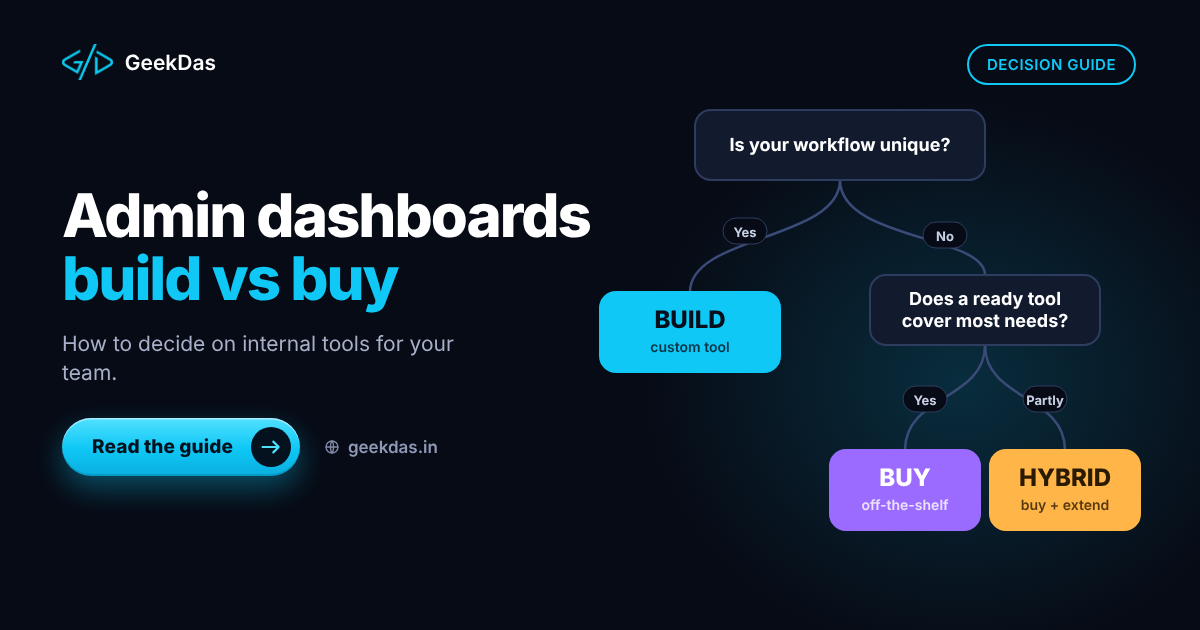
Build vs buy vs low-code
Approach | Best for | Strengths | Limitations |
|---|---|---|---|
Off-the-shelf software (CRM, ERP, helpdesk) | Standard processes | Fast, supported, proven | You adapt to it; per-user costs grow |
Low-code or no-code (Retool, Airtable-style tools and similar) | Quick internal tools over existing data | Very fast to start, non-developers can build | Platform limits, per-seat pricing, scaling and lock-in |
Custom admin dashboard | Unique workflows or a product's own back office | Fits your process exactly; no per-seat licence; integrates anything | Higher upfront cost; you maintain it |
Which to choose
Is there a standard tool for this process? If a mainstream product covers 90 percent, buy it.
Can a low-code tool connect to your data and cover the workflow? Good for a first version, especially if only a few people use it.
Is the process unique, or the tool part of your product? Build custom.
Will many users access it? Per-seat pricing on low-code platforms can exceed custom development over time.
Do you need tight security, custom permissions or deep integrations? Custom is often easier to control.
A hybrid is common: buy for the standard 80 percent and build custom for the part that differentiates you. For the broader decision about custom software, see the buyer's guide to custom web application development.
Features that matter
Data tables
Search, filters, sorting and pagination so staff can find records fast, even among thousands. Saved views for common filters are valued by daily users.
Create, edit and bulk actions
Fast forms with validation, and bulk operations (approve, assign, export) for repetitive work. Risky actions such as deleting need confirmation.
Role-based access
Each person sees and does only what their role allows. Distinguish at least viewer, editor and administrator, and enforce rules on the server, not only by hiding buttons.
Audit trail
A record of who changed what and when protects you in disputes and helps find the cause of errors.
Import and export
CSV and Excel import for migrating existing spreadsheets, and export for reporting and accounting.
Dashboards and reports
The handful of numbers the team reviews every week, with charts where they genuinely help. Start with those, not a large analytics suite.
Notifications and workflow
Email or message alerts when something needs action, and clear status for each item moving through a process.
Integrations
Connection to your existing database, payment provider, CRM or messaging tools, so the dashboard becomes the single place of work rather than another silo. Where the dashboard sits on top of an existing database or API, you keep your data where it is and gain a better interface.
Security and safety
Admin tools hold your most sensitive data and powerful actions, so treat them accordingly:
Authentication: strong passwords or single sign-on, and multi-factor authentication for administrators.
Authorisation on the server: check permissions on every request.
Input validation: never trust data from the browser.
Rate limiting on login and sensitive endpoints.
Audit logging of sensitive actions.
Secure sessions with sensible expiry.
Backups and recovery that you have tested.
Least privilege: give contractors and temporary staff only what they need.
The underlying API quality matters too; see Node.js vs Laravel for your backend for how backend choice affects this.
How to start small
Most internal tools succeed by starting with one painful workflow.
Pick the single most painful process. Where do errors or delays cost the most?
Map how it works today, including exceptions the team handles informally.
Define the smallest tool that removes the pain: usually one list view, one form and one status flow.
Build it in a few weeks, with the people who will use it testing early.
Run it alongside the spreadsheet briefly, then switch.
Collect feedback and add screens as the team finds more to automate.
On GeekDas service pages, admin dashboard projects commonly take 3 to 8 weeks, depending on screens, roles and integrations. Treat that as a planning reference.
Technologies
Common, dependable choices:
Layer | Options |
|---|---|
Front end | React, with a component library for tables and forms |
Backend | Node.js (Express or NestJS) or Laravel |
Database | PostgreSQL or MySQL, or your existing database |
Authentication | Sessions or JWT with role checks |
Charts and export | Standard charting libraries; CSV and Excel generation |
The choice should be driven by what your team can maintain and what systems must integrate.
Cost factors
Number of screens and record types
Number of roles and permission complexity
Integrations with existing systems
Data migration from spreadsheets
Reporting and dashboard depth
Workflow and notification rules
Security and compliance requirements
Ask for a fixed estimate against a written list of screens and roles.
Common mistakes
Building a full back office on day one. Start with the painful workflow.
Copying the spreadsheet exactly, including its workarounds. Improve the process while digitising it.
Skipping permissions, then giving everyone administrator access.
No audit trail.
Ignoring data quality, so the new tool inherits messy records.
No training or handover for staff.
Underestimating maintenance. Internal tools still need updates and backups.
Choosing low-code with no exit plan for when seat counts and costs grow.
How to choose a developer
Look for someone who asks how your team works before proposing screens, can show real admin panels they built, builds permissions and audit logging in by default, and is willing to start with one workflow. Confirm ownership of the code and hosting, and ask what support looks like after handover. The same partner evaluation approach in how to choose a SaaS development partner applies to internal tools.
Why GeekDas
GeekDas is a one-developer practice in Jaipur, Rajasthan, building admin panels and internal tools alongside the products they support, including admin panels for content, users, feedback and booking operations. You work directly with the person building it, which keeps decisions quick and the result consistent with how your team operates. The practice is best suited to focused tools; very large enterprise back-office programmes involve more than one developer can deliver alone.
Conclusion
An admin dashboard pays for itself when it removes recurring manual work and reduces costly mistakes. Choose build, buy or low-code by the uniqueness of your process and the number of users, start with the most painful workflow, and treat permissions and audit trails as core features rather than extras.
If your team is running on spreadsheets and you want to explore a first tool, tell me which process hurts most and I will suggest a small, practical starting point.
Was this article helpful?
Comments
Leave a comment
Loading comments...