

DEB vs APT vs Snap vs Flatpak vs AppImage in Linux
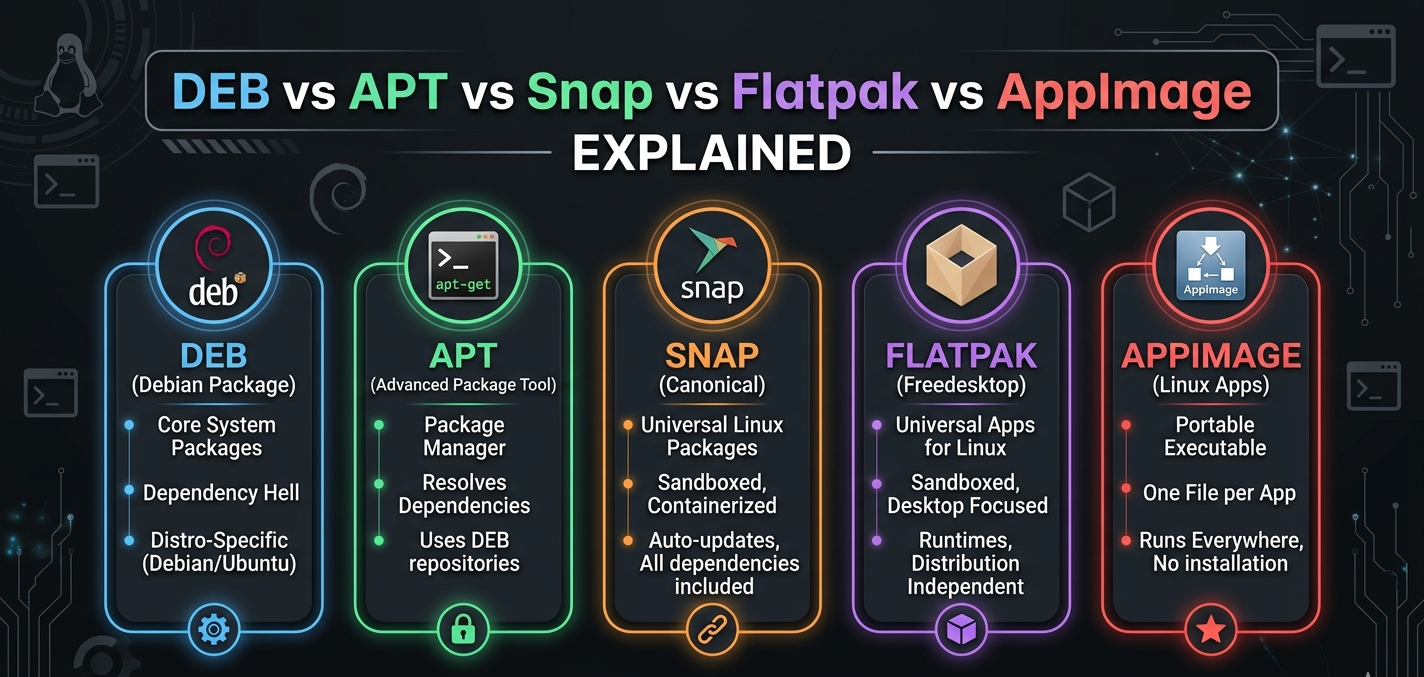
Linux gives you multiple ways to install software-and that’s where confusion begins.
You’ll hear terms like .deb, apt, snap, flatpak, and AppImage used interchangeably, even though they represent different layers of the Linux software installation system.
This guide will give you a crystal-clear mental model so you always know:
What each term actually means
How they relate to each other
When to use which one
Common mistakes to avoid
This is especially useful if you use Ubuntu or Debian based systems.
The Simple Mental Model
Package format ➜ Package manager ➜ Distribution method
Layer | Example | What it does |
|---|---|---|
Package format |
| The file that contains the app |
Package manager |
| Installs and manages packages |
Universal packaging | Snap / Flatpak | Cross-distro app delivery |
Portable app | AppImage | Run without installing |
What is a .deb File? (Package Format)
A .deb file is simply a package file, like .exe on Windows or .dmg on macOS.
Used by Debian-based distros
Contains the program files and metadata
Does not automatically resolve dependencies when installed directly
Practical example
You download:
google-chrome-stable_current_amd64.debInstall it with:
sudo dpkg -i google-chrome-stable_current_amd64.debIf dependencies are missing, it fails.
That’s because .deb is just the container, not the installer logic.
What is APT? (Package Manager)
APT (Advanced Package Tool) is the system that installs .deb packages correctly.
It:
Downloads the correct
.debfrom repositoriesInstalls all required dependencies
Keeps software updated
Removes packages cleanly
Practical example
sudo apt install vlcWhat happens internally:
APT finds the
.debChecks dependencies
Installs everything in the right order
Registers the app for updates
APT is the smart layer on top of
.deb.
What is Snap? (Universal Packaging)
Snap is developed by Canonical.
Snap packages:
Bundle the app with all dependencies
Run in a sandbox
Work across many Linux distributions
Auto-update in the background
Practical example
sudo snap install spotifyKey traits
Larger size
Slower startup (sandbox)
No dependency conflicts
Cross-distro compatibility
What is Flatpak? (Community Universal Packaging)
Flatpak is driven by the GNOME Project and community.
Similar goal to Snap, but different approach:
Uses shared runtimes (smaller than Snap)
Strong sandboxing
Popular on Fedora and GNOME desktops
Practical example
flatpak install flathub com.spotify.ClientWhat is AppImage? (Portable App)
AppImage is the simplest concept:
A single file you download and run. No installation.
Practical example
chmod +x app.AppImage
./app.AppImage
No root access
No package manager
No system integration
Truly portable
Comparison Table
Feature |
|
| Snap | Flatpak | AppImage |
|---|---|---|---|---|---|
What it is | Package file | Package manager | Universal package | Universal package | Portable file |
Needs install | Yes | Yes | Yes | Yes | No |
Handles dependencies | No | Yes | Bundled | Runtime | Bundled |
Auto updates | No | Yes | Yes | Yes | No |
Sandbox | No | No | Yes | Yes | No |
Cross-distro | No | No | Yes | Yes | Yes |
Best for | Manual installs | System software | Desktop apps | Desktop apps | Quick usage |
Setup: How These Work Together on Your System
On a typical Ubuntu/Debian system:
APT is preinstalled
It uses .deb packages from official repositories
Snap support is preinstalled on Ubuntu
Flatpak can be added manually
AppImage needs nothing
Install Flatpak (if needed)
sudo apt install flatpakWhen Should You Use What?
Use APT when:
Installing development libraries
Installing system tools
Running servers (NGINX, MySQL, Node, etc.)
You want stability and updates
Use Snap or Flatpak when:
Installing desktop apps (Spotify, VS Code, Slack)
You want latest versions
You want isolation from system libraries
Use AppImage when:
You don’t want to install anything
You lack sudo access
You want portability (USB usage)
Use .deb manually when:
Software is only provided as a download
You trust the source
You know how to fix dependency issues
Practical Scenarios
Scenario 1: Installing VLC
Best way:
sudo apt install vlcAvoid downloading .deb manually unless necessary.
Scenario 2: Installing Latest VS Code
Better with Snap/Flatpak because repo versions may be older:
sudo snap install code --classicScenario 3: Running a design tool without installing
Use AppImage.
Scenario 4: Installing Chrome from website
You get a .deb, then:
sudo apt install ./google-chrome.debNote: Using apt with a local .deb resolves dependencies automatically.
Common Mistakes (Very Important)
Mistake 1: Thinking .deb and apt are the same
They are not.
.deb= fileapt= installer/manager
Mistake 2: Installing .deb with dpkg and breaking dependencies
Prefer:
sudo apt install ./file.debMistake 3: Using Snap for server software
Snap sandboxing is not ideal for servers.
Mistake 4: Mixing too many systems blindly
Installing the same app via apt, snap, and flatpak causes confusion.
Mistake 5: Expecting AppImage to update automatically
You must download new versions manually.
Benefits of Having Multiple Systems
Linux supports multiple methods because different needs exist.
Need | Best option |
|---|---|
Stability | APT |
Latest version | Snap / Flatpak |
Portability | AppImage |
System integration | APT |
No dependency headache | Snap / Flatpak |
This flexibility is a strength, not a flaw.
Comparison Within the Same Category (Snap vs Flatpak)
Feature | Snap | Flatpak |
|---|---|---|
Creator | Canonical | GNOME/community |
Size | Larger | Smaller |
Performance | Slightly slower | Faster |
Adoption | Ubuntu default | Fedora/GNOME popular |
Runtime model | Fully bundled | Shared runtimes |
Both solve the same problem. Choice often comes down to distro preference.
Conclusion
Understanding Linux software installation becomes easy when you remember:
.deb is just a file
APT is the smart installer
Snap and Flatpak are universal app systems
AppImage is portable software
Use APT for system reliability, Snap/Flatpak for modern apps, and AppImage for convenience.
Once you grasp this layering, Linux package management stops being confusing-and starts being powerful.
Was this article helpful?