
Git Command Cheat Sheet: How to Undo Anything in Git
Every developer has felt that stomach-drop moment: you committed to the wrong branch, pushed a typo to main, or ran a command that seemed to delete hours of work. The good news is that Git is built to be forgiving. Almost nothing you do is truly permanent if you know which command to reach for.
This guide gives you a practical Git command cheat sheet covering the everyday commands, followed by an "undo anything" helper that maps each mistake to the right fix. Bookmark it, and the next time something goes wrong, you will know exactly what to do.
Git Setup and Configuration Basics
Before the cheat sheet, make sure Git is configured correctly. A clean setup avoids many headaches later.
Install and Verify Git
bash
git --versionIf a version number prints, you are ready. Otherwise, install Git from git-scm.com or your system's package manager.
Configure Your Identity
bash
git config --global user.name "Your Name"
git config --global user.email "you@example.com"
git config --global init.defaultBranch main
Helpful Aliases for Undo Work
Aliases save typing and make undoing mistakes faster:
bash
git config --global alias.st "status -sb"
git config --global alias.last "log -1 HEAD --stat"
git config --global alias.unstage "restore --staged"
Now git unstage file.txt removes a file from the staging area in one short command.
The Essential Git Command Cheat Sheet
Here are the commands you will use daily, grouped by task.
Starting and Inspecting a Repository
Command | What it does |
|---|---|
| Creates a new repository in the current folder |
| Copies a remote repository locally |
| Shows changed, staged, and untracked files |
| Shows a compact visual history |
| Shows unstaged changes |
| Shows staged changes |
| Displays one commit in detail |
Saving Your Work
Command | What it does |
|---|---|
| Stages a file |
| Stages changes interactively, hunk by hunk |
| Creates a commit from staged changes |
| Temporarily shelves uncommitted changes |
| Restores the most recent stash |
Branching and Merging
Command | What it does |
|---|---|
| Lists local branches |
| Creates and switches to a new branch |
| Switches to an existing branch |
| Merges a branch into the current one |
| Replays your commits on top of another branch |
Working With Remotes
Command | What it does |
|---|---|
| Downloads remote changes without merging |
| Fetches and merges remote changes |
| Uploads local commits |
| Safer force push that checks for new remote commits |
The "Undo Anything" Helper
This is the core of the guide. Find your situation, then use the matching fix.
Quick Lookup Table
Your situation | Command |
|---|---|
Discard unsaved changes in a file |
|
Unstage a file but keep the changes |
|
Fix the last commit message |
|
Add a forgotten file to the last commit |
|
Undo the last commit, keep changes staged |
|
Undo the last commit, keep changes unstaged |
|
Undo the last commit and delete changes |
|
Undo a pushed commit safely |
|
Recover a "lost" commit |
|
Abort a merge in progress |
|
Abort a rebase in progress |
|
Delete untracked files |
|
Undoing Changes Before You Commit
Discard Changes in a Working File
bash
git restore index.jsThis resets the file to its last committed state. Warning: the discarded edits cannot be recovered, because Git never tracked them.
Unstage a File
bash
git restore --staged index.jsThe file stays modified in your working directory but is removed from the next commit.
Remove Untracked Files
Preview first, then delete:
bash
git clean -nd
git clean -fd
The -n flag is a dry run. Always use it before the real cleanup.
Undoing Local Commits
Fix the Last Commit
Typo in the message, or forgot a file? Amend it:
bash
git add forgotten-file.js
git commit --amend --no-edit
Only amend commits you have not pushed. Amending rewrites history.
Understand the Three Reset Modes
git reset moves your branch pointer backward. The mode decides what happens to your changes:
--soft: keeps changes staged, ready to recommit--mixed(default): keeps changes in your working directory, unstaged--hard: throws changes away completely
bash
git reset --soft HEAD~1   # undo commit, keep staged
git reset --hard HEAD~3   # remove last 3 commits and their changes
Undoing Commits You Already Pushed
Never use reset on shared branches. Rewriting public history forces teammates to untangle conflicts. Use revert instead.
bash
git revert a1b2c3d
git push
git revert creates a new commit that applies the opposite changes. History stays intact, and everyone stays in sync.
To revert a merge commit, specify the parent:
bash
git revert -m 1 <merge-commit-hash>Recovering "Lost" Work With Reflog
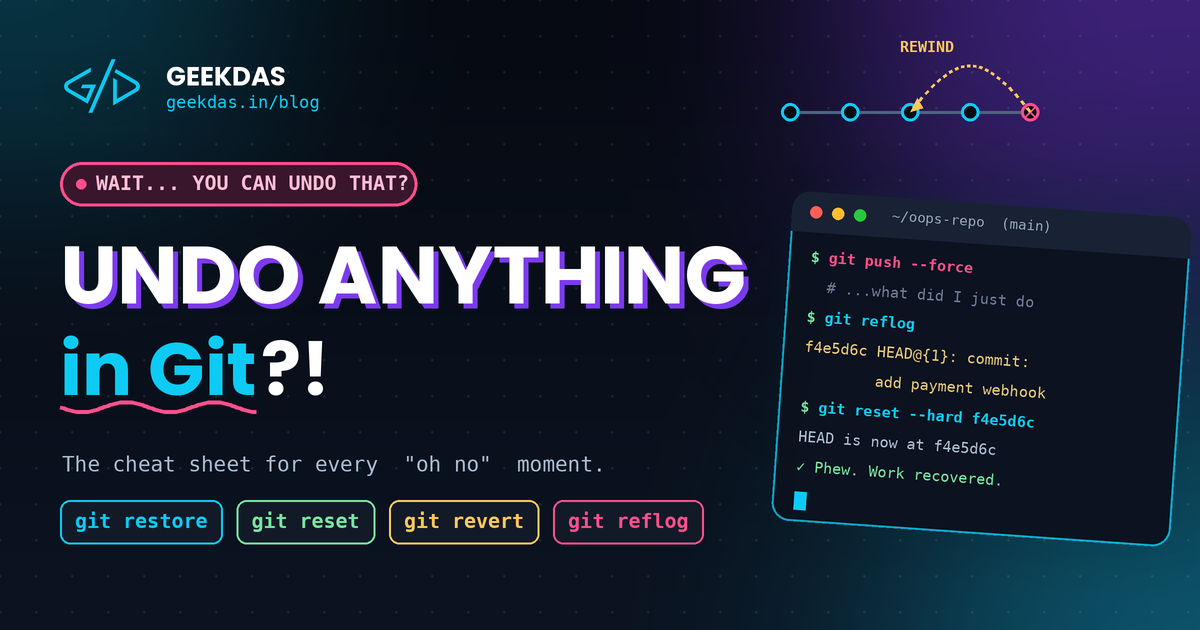
This is Git's real safety net. The reflog records every place HEAD has pointed, including commits that no branch references anymore.
bash
git reflogYou will see output like:
a1b2c3d HEAD@{0}: reset: moving to HEAD~2
f4e5d6c HEAD@{1}: commit: add payment webhook
To get back to that commit:
bash
git reset --hard f4e5d6cOr, safer, create a branch pointing at it:
bash
git branch rescue f4e5d6cReflog entries typically stay available for about 90 days by default, so act sooner rather than later.
Undoing a Bad Merge or Rebase
If a merge goes sideways and you are still resolving conflicts:
bash
git merge --abortFor a rebase:
bash
git rebase --abortIf the merge already completed, find the pre-merge commit in the reflog and reset to it (local branches only), or revert the merge commit (shared branches).
Restoring a Deleted File or Old Version
Bring back a file from a specific commit:
bash
git restore --source=a1b2c3d path/to/file.jsFind the commit that deleted a file:
bash
git log --diff-filter=D --summary -- path/to/file.jsPractical Example: Recovering From a Wrong-Branch Commit
Example 1: Remove an Accidentally Committed File (Like .env)
You committed a file that should never be tracked, but have not pushed yet.
bash
git rm --cached .env
echo ".env" >> .gitignore
git add .gitignore
git commit --amend --no-edit
--cached removes the file from Git's tracking but keeps it on your disk. Important: if the file contained secrets and was already pushed, rotate those credentials immediately. Deleting the file from history does not make an exposed secret safe.
Example 2: Undo a Bad Commit Buried in History
A commit from three days ago introduced a bug, and several good commits came after it. Resetting would remove the good work too, so revert only the bad one:
bash
git log --oneline
git revert 9f8e7d6
Git creates a new commit that cancels just that change. If conflicts appear, resolve them, then run git revert --continue.
Example 3: Split One Messy Commit Into Two
Your last commit mixes a bug fix and an unrelated refactor. Undo the commit but keep the changes, then recommit in pieces:
bash
git reset --mixed HEAD~1
git add -p            # stage only the bug-fix hunks
git commit -m "fix: correct tax calculation"
git add .
git commit -m "refactor: simplify invoice helpers"
Cleaner commits make code review and future reverts much easier.
Example 4: Recover Work After an Accidental git reset --hard
You ran git reset --hard HEAD~3 and realized you needed those commits.
bash
git reflog
# find the entry just before the reset, e.g. HEAD@{1}
git reset --hard HEAD@{1}
Your three commits are back. This works only for commits. Uncommitted changes wiped by a hard reset cannot be recovered this way.
Example 5: Undo a Rebase That Went Wrong
A rebase finished, but the result is a mess. Git saves your pre-rebase position in ORIG_HEAD:
bash
git reset --hard ORIG_HEADIf you have run other commands since, use git reflog and reset to the entry labeled rebase (start)'s preceding commit instead.
Example 6: Restore a Deleted Branch
You deleted a branch with git branch -D feature/search before merging it.
bash
git reflog
git branch feature/search c3d4e5f
Find the last commit hash the branch pointed to in the reflog, then recreate the branch at that hash.
Example 7: Rescue Changes You Stashed Then Forgot
bash
git stash list
git stash show -p stash@{1}
git stash apply stash@{1}
Use apply instead of pop when you want to keep the stash as a backup until you are sure the changes applied cleanly. If you dropped a stash by mistake, git fsck --no-reflog | grep commit can often locate it.
Example 8: Undo a Pull That Brought in Unwanted Changes
You ran git pull and the merge pulled in commits that break your build.
bash
git reset --hard ORIG_HEADThis returns your branch to where it was before the pull. Run git status first to make sure you have no uncommitted work you would lose.
Common Mistakes When Undoing in Git
Using git reset --hard Without Checking First
Hard reset deletes uncommitted work permanently. Run git status and git diff first, or stash your changes with git stash as a precaution.
Resetting Commits That Are Already Pushed
Resetting a shared branch and force-pushing overwrites your teammates' history. Use git revert for anything public.
Using git push --force Instead of --force-with-lease
A plain force push overwrites whatever is on the remote, even commits you have never seen. --force-with-lease refuses the push if someone else has added commits.
Forgetting That Untracked Files Are Not Protected
git clean and git restore cannot bring back files Git never tracked. Commit or stash early and often.
Panicking Instead of Checking the Reflog
Most "lost" commits are still recoverable. Before assuming the worst, run git reflog. Staying calm is a genuine Git skill.
Mixing Up revert and reset
reset rewrites history; revert adds to it. If you are unsure which to use, ask whether the commit has left your machine. If it has, choose revert.
Benefits of Learning Git's Undo Tools
Mastering these commands changes how you work.
Confidence to experiment. When you know you can undo anything, you try bolder refactors and branches.
Faster recovery. A one-line fix beats an hour of manually rebuilding lost code.
Cleaner history. Amending and interactive staging produce tidy, reviewable commits.
Team safety. Knowing when to revert instead of reset protects your colleagues from broken history.
Less stress. Mistakes become minor interruptions instead of emergencies.
Git Undo Commands Compared
Many beginners struggle because several commands seem to do similar things. This comparison clarifies when each fits.
Command | Changes history? | Safe for shared branches? | Best for |
|---|---|---|---|
| No | Yes (local files only) | Discarding file changes or unstaging |
| Yes | No | Cleaning up local commits |
| No (adds a commit) | Yes | Undoing pushed commits |
| Yes | No | Fixing the latest local commit |
| No | Yes | Legacy file restore and branch switching |
| No | Yes | Recovering lost commits |
Command Line vs. GUI Clients
Tools like GitHub Desktop, GitKraken, and VS Code's Source Control panel offer buttons for undoing commits. They are great for visualization and quick tasks. However, the command line gives you finer control, works over SSH, and is identical on every system. Many GUIs run the same commands described here under the hood, so learning them makes you effective in any tool.
Git vs. Other Version Control Systems
Subversion has no local commits, so undoing means reverse-merging changes on a central server. Mercurial offers commands like hg rollback and hg backout, but it is more conservative about rewriting history. Git's local-first design and reflog make it unusually flexible for recovery, which is a major reason it dominates modern development.
Conclusion
Git can feel intimidating, but its undo tools are what make it so powerful. Remember the core pattern: use restore for files, reset for local commits, revert for pushed commits, and reflog when something seems lost. Add --amend for quick fixes to your latest commit, and always preview destructive commands with git status or a dry run.
Keep this cheat sheet handy, practice the commands in a throwaway repository, and the next Git mistake will cost you seconds instead of hours.
Was this article helpful?