Flatpak Best Practices (2026): Permissions, Updates and Cleanup
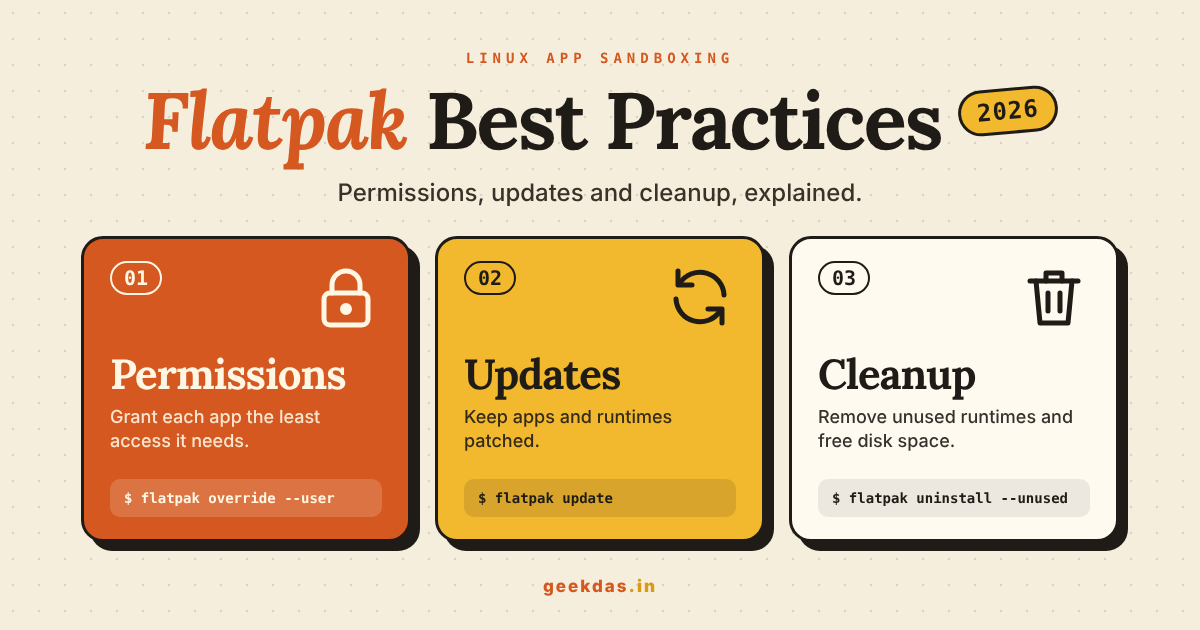
Short answer: install from Flathub, check an app's permissions before you trust it, tighten them with flatpak override or Flatseal, run flatpak update regularly, and clean unused runtimes with flatpak uninstall --unused. Do not install the same app through both Flatpak and APT.
New to Flatpak? Read Flatpak vs APT first.
1. Install from a source you trust
Flathub is the main Flatpak repository, and the one most people should use.
flatpak remote-add --if-not-exists flathub https://flathub.org/repo/flathub.flatpakrepo
flatpak remotes
Tips:
Prefer apps that Flathub marks as verified (the developer has confirmed ownership of the app).
Check the app ID in the URL, for example
org.gimp.GIMP. Look-alike names are a common trick.Add other remotes only if you know and trust who runs them.
2. Choose user or system installs on purpose
Flatpak can install for just you or for everyone on the machine.
flatpak install --user flathub org.gimp.GIMP     # only your account
flatpak install --system flathub org.gimp.GIMP   # all users (needs admin rights)
On a single-user laptop, either works. On a shared machine, use --system for common apps and --user for personal ones. Do not mix the two for the same app, or flatpak list shows two copies.
3. Check permissions before you rely on the sandbox
A Flatpak is only as isolated as the permissions it requests.
flatpak info --show-permissions org.gimp.GIMPLook for these broad permissions:
filesystem=hostorfilesystem=home: the app can read most or all of your files.device=all: access to all devices.--socket=x11plus network access: usual for GUI apps, but worth knowing.
If an app asks for far more than it needs, consider another app or limit it (next section).
4. Limit permissions with overrides or Flatseal
Flatseal is a graphical app for managing Flatpak permissions:
flatpak install flathub com.github.tchx84.FlatsealOr use the command line:
# Remove access to your whole home folder
flatpak override --user --nofilesystem=home org.example.App

# Give access to only one folder
flatpak override --user --filesystem=~/Documents org.example.App

# Turn off network access
flatpak override --user --unshare=network org.example.App

# Undo all your overrides for the app
flatpak override --user --reset org.example.App
Replace org.example.App with the real app ID. After tightening permissions, open the app and check it still works. If something breaks, add back only what is needed.
5. Prefer portals over broad file access
Many modern Flatpaks use "portals". When you press "Open file", the system file chooser opens outside the app, and the app only receives the file you picked. This is why many apps work fine without access to your whole home folder.
If an app asks for the whole home folder only to open files, try removing that permission and see if the portal is enough. To reset stored portal permissions for an app:
flatpak permission-reset org.example.App6. Keep apps updated
apt upgrade does not update Flatpaks. Update them separately:
flatpak updateWays to make this routine:
Run it together with your system updates:
sudo apt update && sudo apt upgrade && flatpak updateOn GNOME or KDE, the software center (GNOME Software, Discover) can download Flatpak updates automatically.
Use
flatpak update -yin a scheduled job on machines you manage.
Check what changed recently:
flatpak history7. Clean up unused runtimes
Each app depends on a runtime, and old runtimes can pile up after updates. Remove ones nothing uses:
flatpak uninstall --unusedSee what is installed and how much space it takes:
flatpak list --runtime
flatpak list --app
du -sh /var/lib/flatpak ~/.local/share/flatpak
Run the cleanup every few months. It is safe: runtimes still needed by an app are not removed.
8. Do not install the same app twice
If you installed an app with APT and then again as a Flatpak, you have two copies with separate settings. Check before installing:
dpkg -l | grep <name>
flatpak list | grep -i <name>
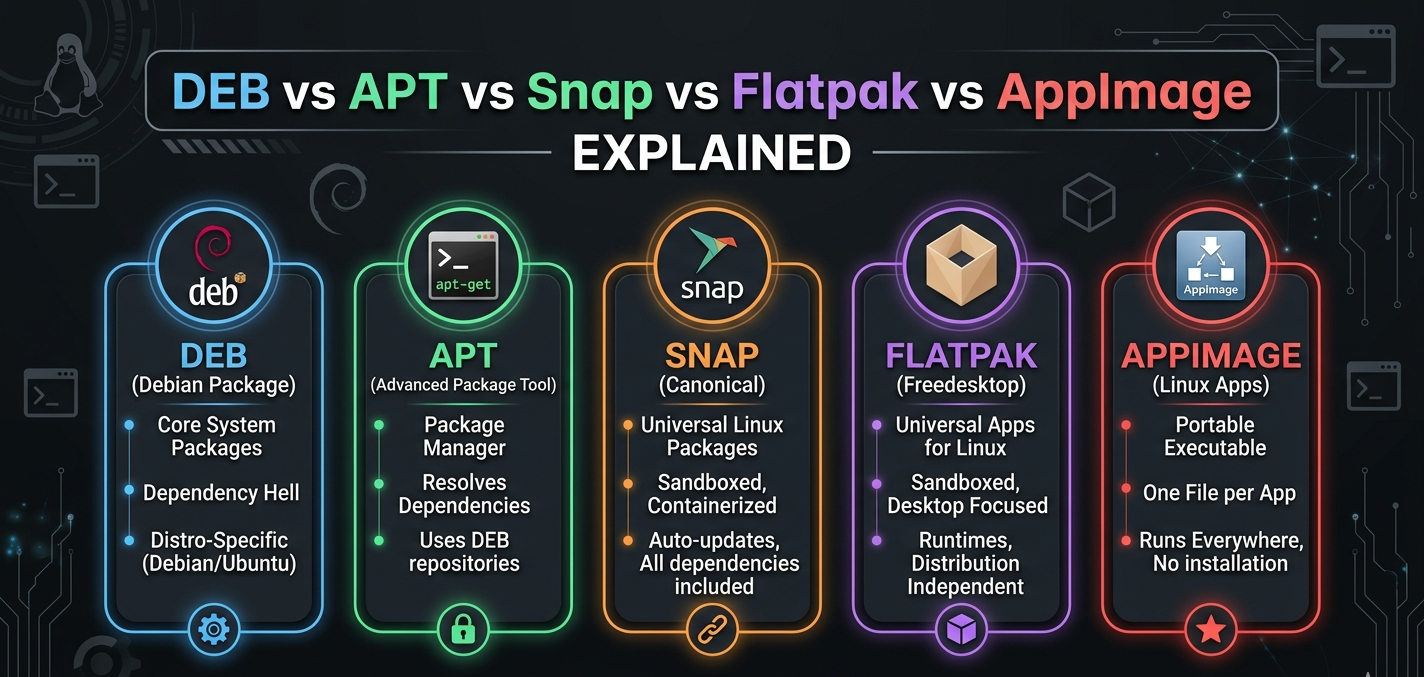
Keep one. For background, see the full comparison of Linux package formats.
9. Know where app data lives, and back it up
Each Flatpak app keeps its settings and data in its own folder:
~/.var/app/<app-id>/For example ~/.var/app/org.gimp.GIMP/. To back up an app's settings, copy that folder. To start an app fresh, remove it after uninstalling:
flatpak uninstall --delete-data org.gimp.GIMPNote that --delete-data removes the settings and data for good.
10. Troubleshooting
An app will not start
Run it from a terminal to see the error output:
flatpak run --verbose org.example.AppBroken installation or odd errors after a crash
flatpak repairAn app cannot see your files or theme
This is usually a permission, not a bug. Grant the specific folder with flatpak override --user --filesystem=<path> <app-id>, or use Flatseal.
An update broke something
Check flatpak history, then look at older commits for the app:
flatpak remote-info --log flathub org.example.App
flatpak update --commit=<hash> org.example.App
This is an advanced option; use it only when you need to roll back.
A short best-practices checklist
[ ] Use Flathub and prefer verified apps
[ ] Check permissions with
flatpak info --show-permissions[ ] Remove broad access with Flatseal or
flatpak override[ ] Run
flatpak updateas often as you runapt upgrade[ ] Run
flatpak uninstall --unusedevery few months[ ] Avoid installing the same app through APT and Flatpak
[ ] Back up
~/.var/app/<app-id>/for apps that matter
Conclusion
Flatpak gives you newer desktop apps and a sandbox, but the sandbox only helps if you look at the permissions and keep apps updated. Spend a few minutes on permissions, set up a routine for updates and clean up unused runtimes now and then. Together with APT for system software, that gives you a tidy and safe Linux desktop.
Was this article helpful?