

AI-Era Productivity: How to Work on Multiple Git Branches at Once
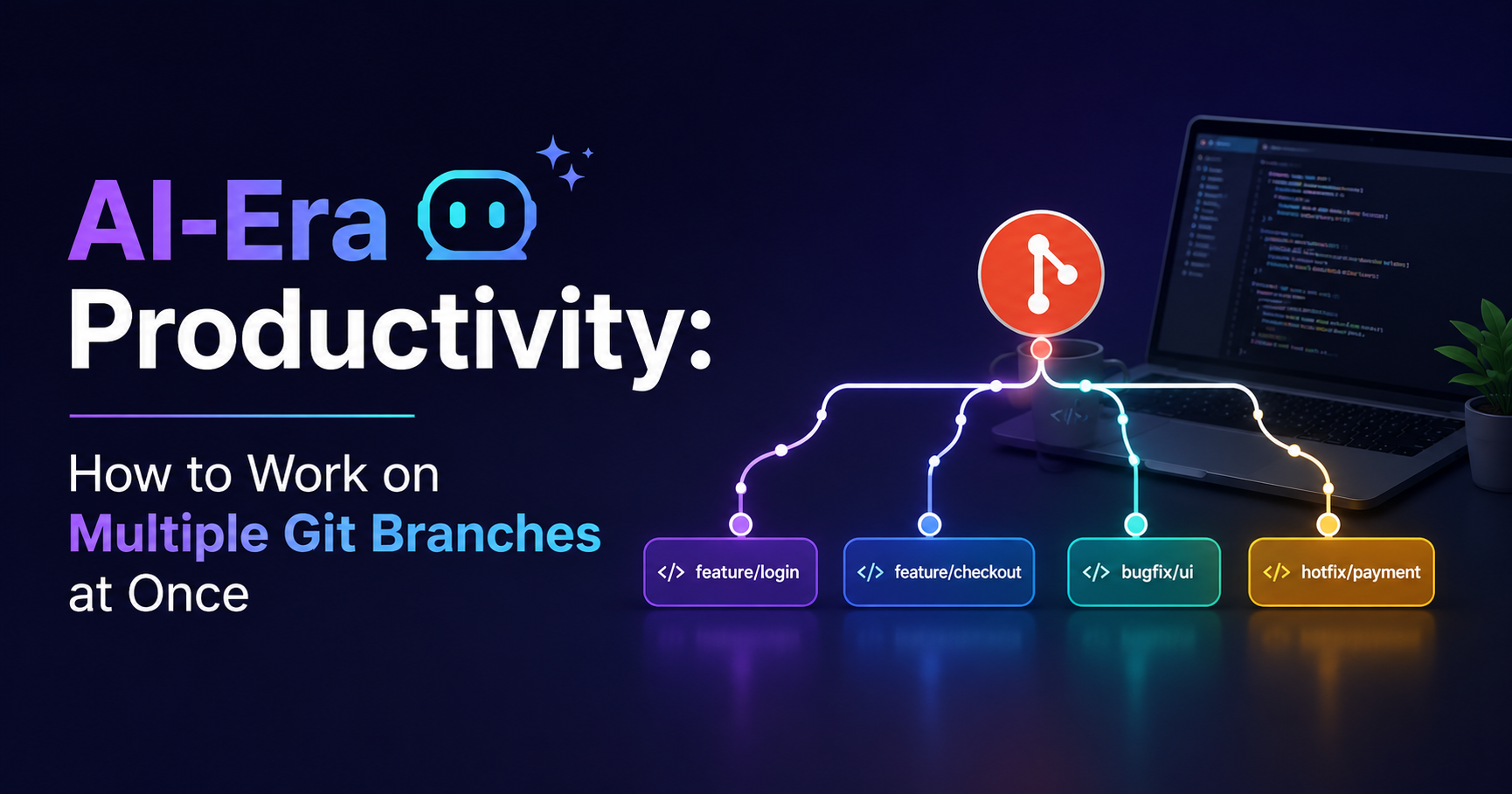
The way developers work is changing quickly. With AI coding assistants, faster development tools, automation, and shorter release cycles, it is common to work on several things at the same time. You may be fixing a production bug while developing a new feature, testing an AI-generated idea, reviewing a pull request, or experimenting with a completely different solution.
The problem is that your Git workflow does not always move as quickly as your workload.
You may have one feature half-finished in your current branch when an urgent bug suddenly appears. Normally, you would need to save your changes, switch branches, make the fix, switch back, and restore your previous work.
This works, but it can become annoying when you do it repeatedly. There is a better Git feature for this situation: Git worktree.
Git worktrees allow you to have multiple working directories connected to the same Git repository, with different branches checked out in each directory. In simple terms, you can work on multiple Git branches at the same time without constantly switching your current folder between branches.
In this guide, we will look at how this works, why it is useful for modern developer productivity, and how you can add it to your everyday software development workflow.
Why Developers Need to Work on Multiple Tasks
Modern development rarely happens one task at a time.
Imagine you are working on a web application. Your current task is a new dashboard feature, but during development you receive three additional requests:
Fix a login issue.
Review another developer's feature.
Test an experimental change generated with an AI coding assistant.
If everything happens in the same folder, you have to constantly manage your current Git state.
You might have uncommitted files, partially completed code, temporary changes, or configuration changes that you do not want to disturb.
This becomes even more common when using AI productivity tools. AI can make it much faster to generate code and experiment with different solutions, but faster experimentation can also mean more branches, prototypes, and unfinished work.
The goal is not simply to do more things simultaneously. The goal is to make switching between tasks cheap, safe, and predictable.
The Traditional Git Branch Workflow
Before understanding Git worktrees, it helps to understand the normal Git branch workflow.
Suppose you have a repository:
my-project/You are currently working on:
feature/dashboardNow an urgent bug appears and you need to work on:
fix/login-errorNormally, you might do:
git status
git add .
git commit -m "WIP: dashboard changes"
git switch fix/login-error
After fixing the issue, you switch back:
git switch feature/dashboardThis is perfectly valid Git usage.
The problem appears when the first branch is not ready to commit.
Maybe you have changed ten files, created temporary code, or are halfway through an experiment. You may not want to make a temporary commit just to change tasks.
You could use git stash, but that introduces another layer of state to remember.
This is where working with multiple Git branches becomes much easier with worktrees.
If you are completely new to Git, it is worth learning the basic commands before using worktrees. The 10 Basic Git Commands Every Beginner Should Know guide covers commands such as git status, git add, git commit, branch management, git push, and other fundamentals.
What Is a Git Worktree?
A Git worktree is an additional working directory connected to the same Git repository.
Instead of having:
my-project/and repeatedly switching branches inside it, you can have:
projects/
├── my-project/
├── dashboard/
├── login-fix/
└── ai-experiment/
Each folder can represent a different branch.
For example:
my-project/       ➜ feature/dashboard
login-fix/        ➜ fix/login-error
ai-experiment/   ➜ experiment/ai-search
You can open my-project in one editor window and login-fix in another.
There is no need to repeatedly switch the branch in the same directory.
Git officially describes worktrees as multiple working trees attached to one repository. The main worktree and linked worktrees share repository data while maintaining separate working-directory state such as the checked-out HEAD and index.
Why This Is Different From Cloning the Repository Again
You might wonder:
Why not simply clone the repository three times?
You can, but that is not the same as using worktrees.
With multiple clones, each directory is a separate Git repository with its own .git directory and repository metadata.
With worktrees, the additional directories are linked to the same repository.
This makes worktrees particularly useful when you want several branches available without maintaining several independent clones.
Before Using Git Worktrees
You need a Git repository to work with.
If you are setting up Git for the first time on Ubuntu, see the How to Install and Set Up Git on Ubuntu Linux guide. It covers Git installation, configuration, verification, and basic repository setup.
Once Git is installed and your repository is ready, you can start using worktrees.
How to Create a Git Worktree
Let's use a practical example.
Assume your main project is:
cd ~/projects/my-projectFirst, check your current worktrees:
git worktree listYou might see:
/home/user/projects/my-project abc1234 [main]Now suppose you want to work on a bug fix in another directory.
Run:
git worktree add ../login-fix fix/login-errorGit creates:
~/projects/login-fixand checks out the fix/login-error branch there.
You can now enter it:
cd ../login-fixYour original project folder remains on its existing branch.
Can I use Git worktrees with GitHub?
Yes. Git worktrees work with repositories hosted on GitHub. You can commit and push from a worktree just like you would from a normal Git working directory.
If you are setting up GitHub SSH authentication, the How to Add GitHub SSH in Linux and Git Clone Using That SSH guide explains how to configure SSH and clone repositories using it.
Creating a New Branch and Worktree Together
If the branch does not exist yet, you can create it with -b:
git worktree add -b feature/search ../search-featureThis creates the new branch and its worktree at the same time.
You now have:
my-project/       ➜ main
search-feature/   ➜ feature/search
Both directories are connected to the same repository.
A Practical Multiple-Branch Workflow
Here is where Git worktrees become especially useful.
Imagine your day looks like this:
Main Feature
You are developing:
feature/dashboardYour directory:
~/projects/dashboardYou have several unfinished changes and do not want to commit them yet.
Urgent Bug
A production issue appears.
Instead of stashing your dashboard work, create another worktree:
git worktree add -b fix/payment-error ../payment-fixThen:
cd ../payment-fixFix the problem, test it, commit it, and push:
git add .
git commit -m "Fix payment error"
git push origin fix/payment-error
Your unfinished dashboard work is still sitting exactly where you left it.
Code Review
Now you need to review another branch.
You can create another worktree:
git worktree add ../review-feature feature/new-checkoutNow you can inspect and test that branch without disturbing your dashboard or payment-fix work.
This is one of the biggest advantages of worktrees: your tasks become physically separated while remaining part of the same Git workflow.
Using Git Worktrees With AI Coding Tools
AI has made experimentation much faster.
A developer might ask an AI coding assistant to:
Refactor a component.
Generate a new API implementation.
Try a performance optimization.
Build a prototype.
Investigate a bug.
Write tests.
Instead of making all these experiments inside one working directory, you can isolate them.
For example:
project/
├── dashboard/        ➜ feature/dashboard
├── payment-fix/      ➜ fix/payment-error
├── ai-refactor/      ➜ experiment/refactor
└── api-experiment/   ➜ experiment/new-api
You can then open different worktrees in separate editor windows or terminal sessions.
This creates a useful AI-era productivity pattern:
One task ➜ one branch ➜ one working directory.
That separation reduces accidental changes and makes experiments easier to discard.
Useful Git Worktree Commands
See All Worktrees
git worktree listThis shows the worktrees associated with the repository.
Add a Worktree
For an existing branch:
git worktree add ../folder branch-nameFor a new branch:
git worktree add -b new-branch ../folderRemove a Worktree
When you finish the task:
git worktree remove ../folderGit will normally refuse to remove a worktree that contains uncommitted changes unless you explicitly force the operation.
Clean Up Stale Worktree Information
If a worktree directory was manually deleted, Git may retain its administrative information temporarily.
You can clean stale entries with:
git worktree pruneThe official Git documentation also provides move, lock, unlock, repair, and other worktree commands for more advanced workflows.
Git Worktree vs Git Stash
Git stash and Git worktree solve different problems.
Use Git stash when you want to temporarily put changes aside in the same working directory.
For example:
git stash
git switch another-branch
Use Git worktree when you want to keep multiple branches available as separate working directories.
For example:
dashboard/   ➜ unfinished feature
bug-fix/    ➜ urgent fix
review/     ➜ code review
A simple way to think about it is:
Stash temporarily hides work. Worktrees keep different work visible and separate.
Both tools are useful, but worktrees are often more convenient when you regularly move between several active tasks.
Advantages of Git Worktrees
1. No Constant Branch Switching
You can keep several branches checked out at the same time.
That saves repeated git switch operations when moving between tasks.
2. Keep Unfinished Work Safe
Your half-completed feature can remain untouched while you handle another task.
You do not need to create unnecessary WIP commits just to change context.
3. Faster Context Switching
Instead of changing the state of one directory, you simply move to another directory.
This can be especially useful when working across several terminals or IDE windows.
4. Great for Testing
You can keep one worktree running a development server while using another to test a different branch.
This is useful when comparing implementations or reproducing branch-specific bugs.
5. Useful for AI-Assisted Development
AI coding often encourages rapid experimentation.
Worktrees provide a clean way to isolate those experiments from your main development work.
Limitations of Git Worktrees
Worktrees are useful, but they are not magic.
Dependency and Build Files Can Still Cause Confusion
Each worktree has its own working directory, so generated files and dependencies may need to be installed or configured separately depending on your project.
For example, a Node.js project may require:
npm installinside a new worktree.
Similarly, environment files such as .env may not automatically exist in every worktree.
You Need More Disk Space
Although worktrees share much of the underlying Git repository data, each working directory still contains project files.
Large projects with large dependency directories can consume significant disk space.
Too Many Worktrees Can Become Messy
Creating ten worktrees for ten small tasks may make your workspace harder to understand.
Use worktrees for genuinely independent tasks rather than creating one for every tiny change.
A Branch Is Normally Checked Out in Only One Worktree
Git protects against accidentally checking out the same branch in multiple worktrees. The standard git worktree add behavior refuses this unless you explicitly override the safeguard with --force.
Common Git Worktree Mistakes
Creating Worktrees Everywhere
A worktree should have a clear purpose.
Instead of:
project-test-1
project-test-2
project-test-3
project-final
project-final-new
use meaningful names:
dashboard
payment-fix
api-experiment
Forgetting Which Branch Is Active
Run:
git branch --show-currentwhen you are unsure.
You can also use:
git worktree listto see all branches and their directories.
Deleting Worktrees Manually
Instead of simply deleting a linked worktree directory, prefer:
git worktree remove ../payment-fixThis lets Git clean up its worktree metadata properly. If a directory has already been removed manually, git worktree prune can clean stale administrative information.
Assuming Environment Files Will Appear Automatically
Files such as .env are often intentionally ignored by Git.
If your application needs them, configure each worktree correctly rather than assuming the file will be copied from another directory.
Best Practices for a Better Git Workflow
A few simple rules can make multiple worktrees much easier to manage.
Give Worktrees Clear Names
Name directories based on the task:
feature-dashboard
fix-login
review-checkout
experiment-ai-search
Keep One Main Purpose Per Worktree
Avoid mixing unrelated tasks in the same directory.
Check Status Before Leaving
Before moving away from a worktree:
git statusThis helps you remember whether changes are committed, staged, or still in progress.
Remove Finished Worktrees
When a branch is merged and no longer needed, remove its worktree:
git worktree remove ../feature-dashboardThen clean up old local branches when appropriate.
Combine Worktrees With Good Git Practices
Worktrees do not replace basic Git knowledge.
You should still understand commands such as:
git status
git switch
git add
git commit
git pull
git push
If you are new to Git, learning these fundamentals first will make worktrees much easier to understand. GeekDas's existing guides on Git installation, basic Git commands, and GitHub SSH setup provide useful background for this workflow.
When Should You Use Git Worktrees?
Git worktrees are especially useful when:
You frequently switch between active branches.
You often handle urgent production fixes.
You review pull requests locally.
You work on several features simultaneously.
You run multiple development environments.
You frequently experiment with AI-generated code.
You want to avoid stashing unfinished changes.
You need to compare different implementations.
If you normally work on one feature from start to finish, a traditional branch workflow may be all you need.
But when your development workflow involves constant context switching, worktrees can make a noticeable difference.
Conclusion
Modern developers are increasingly expected to handle multiple tasks, experiments, reviews, fixes, and features without losing momentum.
AI tools can accelerate how quickly we write and test code, but productivity is not only about writing code faster. It is also about creating a workflow that makes changing context safe and easy.
Git worktrees are a simple but powerful part of that workflow.
Instead of repeatedly switching branches inside one directory, you can create separate working directories for different branches:
project/
├── feature-dashboard/
├── fix-payment/
├── review-checkout/
└── ai-experiment/
Each task gets its own space while remaining connected to the same Git repository.
If you regularly find yourself saying, "I need to stop this work and quickly switch to another branch," Git worktree is worth learning.
It may become one of the most useful developer tools in your everyday Git workflow-especially as AI makes it easier to work on more ideas at the same time.
Was this article helpful?